Loading...

Smart Tools deep dive · 16 min read
How to Use the Trade Journal
A first-person walkthrough of the Trade Journal at /journal: every KPI tile, filter, sort, table column, and the behavioral coach on the Stats tab explained with real demo screenshots and three practical workflows.
Open the tool →Hey guys, Art from TraderMatrix here. The page I want to walk you through is the Trade Journal, at /journal. Out of everything on the platform, this one is different: the data comes from you. You log the entries, write the thesis notes, tag the strategy, and close the trades when you're out. In return, the journal gives you a behavioral pattern analysis across your closed-trade history and a split between your alert-sourced and own-idea win rates that a brokerage statement cannot produce.
This guide covers every element on the Trades tab, the KPI strip, the filters, sorts, and columns, the expired-options resolver, how to log a trade, and what the Stats tab shows. I'll use the screenshot from a demo account loaded with sample trades so you can follow along visually.
The short version:
- The journal is a manual log, not a brokerage sync. You enter trades yourself.
- The WIN RATE tile shows all-time win rate across every account, regardless of which range chip or account filter you have active.
- Expired options need your decision before they affect your P&L, win rate, and capital-at-work numbers. The banner tells you when action is required.
- The behavioral coach needs enough closed trades to say something meaningful. Twenty is the minimum; fifty is where the patterns carry real weight.
- If you're acting on a Discord alert, use the journal deep-link in the embed rather than opening the form manually. The alert source stamp is what keeps the win-rate split accurate.
What this page is and what it isn't
The Trade Journal is a manual record. You open /journal, tap "+Log a trade," fill in the entry details, and close the entry when the position is done. Nothing flows in automatically from a brokerage.
That design is intentional. A manual log captures things a brokerage confirmation never sees: what you were thinking at entry, which alert you were acting on, whether the thesis played out. The behavioral coach and the win-rate split between alert-sourced and own-idea trades both depend on that layer of metadata. You give the journal the context, and it gives you the pattern analysis back.
What the journal does not do: it does not display live open P&L against current market prices as a primary view (that's the Portfolio tab, with its own guide at /learn/tools/my-portfolio), it does not import trades automatically from a brokerage feed, and it does not calculate commissions or net-of-cost performance. P&L in the journal is gross, calculated from the entry and exit prices you log.
Access requires a Premium subscription. If you see a teaser screen at /journal instead of the Trades tab, that's the tier gate.
The page at a glance
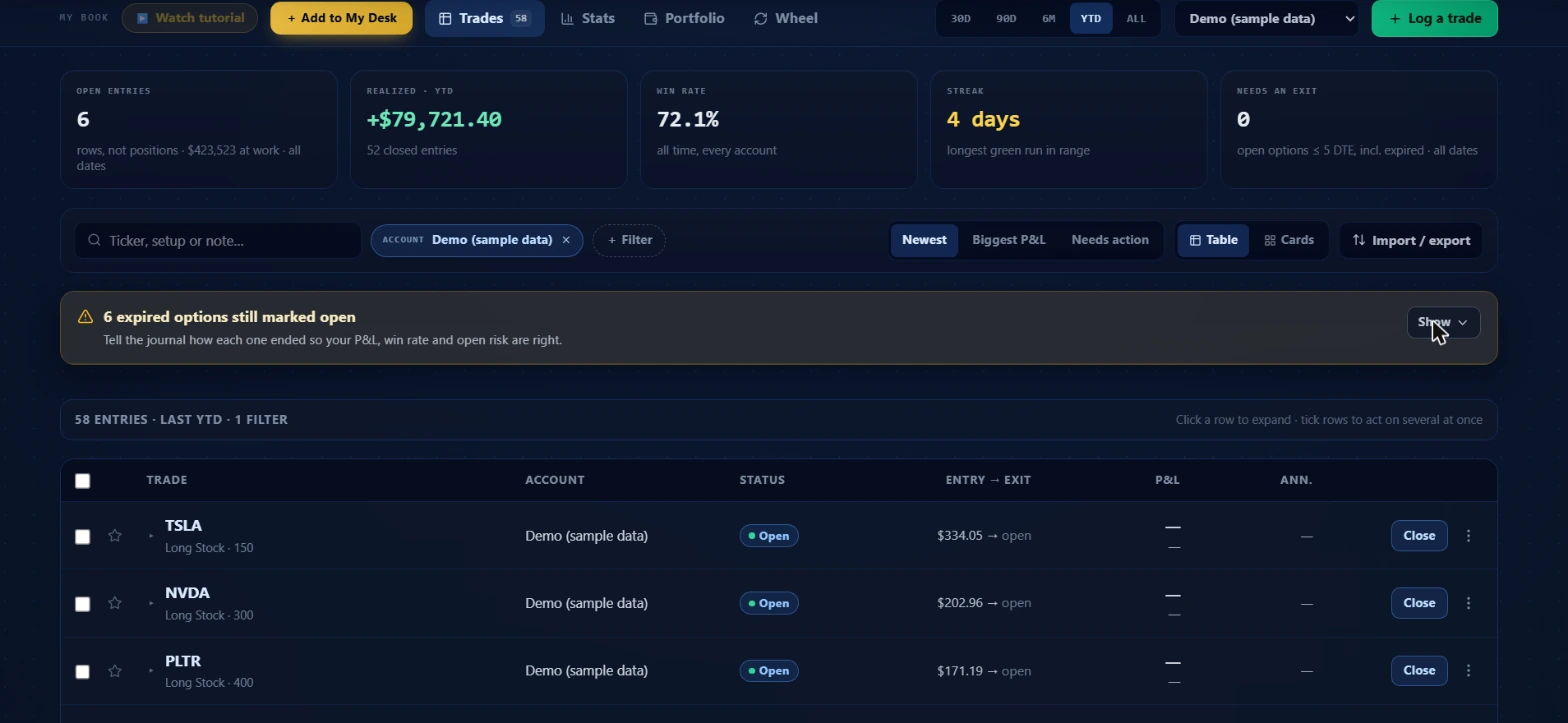 Demo account loaded with sample trades for illustration. Every number here is sample data, not anyone's real results. The WIN RATE tile says "all time, every account" because it does not filter by range chip or account selector.
At the top of the page: MY BOOK label, Watch tutorial, and "+Add to My Desk" on the left. Tabs across the center: Trades (with the entry count badge), Stats, Portfolio, and Wheel. Range chips follow: 30D, 90D, 6M, YTD, ALL. An account dropdown sits to their right, and the green "+Log a trade" button is at the far right.
The KPI strip
Five tiles run across the full width of the page below the top bar.
OPEN ENTRIES
The count of currently open rows in your book. The subtitle adds the total capital at work across those entries and notes "all dates." This tile intentionally ignores the range chip: an open position from eight months ago is still open whether you're looking at a 30D or YTD view, and you need to see it regardless. The "rows, not positions" qualifier matters for multi-leg combos: a two-leg vertical spread logged as two separate entries counts as two open rows here, not one position.
REALIZED
The sum of P&L on closed entries within the active range. In the screenshot this reads "+$79,721.40 · 52 closed entries" with the label "REALIZED · YTD." This tile does respect the range chip: switch to 30D and you see only closed P&L from the last 30 calendar days. The entry count tells you the sample size behind the figure.
WIN RATE
The screenshot shows 72.1% with the subtitle "all time, every account." That subtitle is the most important thing to read before citing this number anywhere. The WIN RATE tile calculates your win rate across your entire journal history, across every account you've ever logged under, regardless of which range chip or account dropdown is active. Selecting the Demo account or switching to 30D does not change this number.
The design is intentional: a win rate calculated over a 30-day window is too small a sample on most books to mean anything stable. The all-time figure is the reference point. For a time-windowed view, look at the closed entries in the table for your active range and count from there, or check the strategy breakdown in the Stats tab.
STREAK
The longest consecutive winning run within the active range, in days. The screenshot reads "4 days · longest green run in range." This is the peak winning streak within the period selected, not necessarily an active current streak.
NEEDS AN EXIT
Open options that are within five days of expiry, including options that have already passed their expiry date. The screenshot shows 0. When this tile is nonzero, there are entries you need to act on. An option that expired worthless stays in your open entries until you resolve it, which keeps a loss out of your realized P&L, inflates the capital-at-work figure in OPEN ENTRIES, and reduces the closed-trade sample the WIN RATE tile calculates from.
Range chips and the account filter
The range chips (30D, 90D, 6M, YTD, ALL) control the date window for the REALIZED tile, the Streak reading, and the table. Open entries appear in the table regardless of range because of the "all dates" scope described above.
The account dropdown filters the table and REALIZED tile to a single named account. If you track a paper-trading book separately from your real book, naming each account when you log a trade lets you switch between them here. Once applied, the filter appears as a chip in the toolbar: "ACCOUNT [name] x" with a clear button.
Both the range selection and the active account are saved to localStorage. The journal reopens on the settings you left it on.
The toolbar
A single toolbar below the KPI strip handles search, filtering, sorting, view toggle, and import/export.
Search
The search box accepts a ticker symbol, a strategy name, or any word from a thesis note. If you write a short note at every entry, search becomes a fast way to pull up every trade you've taken on a specific name, or every trade where you used a particular setup phrase. The filter runs as you type.
Filter
The "+Filter" button opens a filter panel with these dimensions: status (open or closed), source (alert kind: big_bet, all_in, wheel, or none for own-idea trades), broker, strategy, paper versus real money, needs review (entries missing a strategy tag), and risk unknown (entries where no planned-risk amount was set). Most of the time the account dropdown and the search handle what you need. The source filter is useful when you want to isolate alert-sourced trades to compare their win rate with what the Stats tab shows.
Sort modes
Three options:
| Sort | What it surfaces |
|---|---|
| Newest | Entries ordered by entry date, most recent first |
| Biggest P&L | Sorted by absolute realized P&L, closed entries first |
| Needs action | Open options closest to expiry; expired options at the top |
Needs action is the sort to run before any session where you were holding short-dated options. It puts the time-sensitive entries at the top without scanning manually.
Table and Cards toggle
Table view shows each entry as a compact row. Cards view shows a larger card per entry with more detail visible per row without expanding. Both show the same set of entries.
Import / export
The Import / export button opens a dropdown for exporting your entries as CSV or JSON, and for importing entries from a file. Import supports a custom CSV format and IBKR Activity Statement files, letting you seed the journal from Interactive Brokers history. The JSON format supports round-trip imports from a previous export file.
The expired-options banner
When open options in your book are at or near their expiry, a yellow banner appears below the toolbar: "N expired options still marked open. Tell the journal how each one ended so your P&L, win rate and open risk are right." The screenshot shows one active, with six expired entries. Clicking Show expands the list.
For each expired entry, you choose one of three resolutions:
Bought to close: You exited the position before expiry. Enter the exit price and the journal calculates realized P&L from entry minus exit.
Let it expire: The option reached expiry without being closed. For a long option this typically means the full premium paid is the loss. For a short option it means full premium collected. For in-the-money options at expiry, set the appropriate final P&L manually.
Rolled: You moved the position to a new expiry or strike. The journal links the resolved entry to a new open entry for the continuation position, and the roll chain becomes visible when you expand the row in the table.
Until you resolve expired entries, the REALIZED tile understates loss, WIN RATE has a smaller sample than your actual closed-trade history, and OPEN ENTRIES overstates capital at work. Running the resolver before each Monday open takes two to three minutes when you've been logging consistently.
Table columns
The table header shows a count of matching entries and active filters: in the screenshot "58 ENTRIES · LAST YTD · 1 FILTER." The note on the right reads "Click a row to expand · tick rows to act on several at once."
TRADE: Ticker, instrument type, and quantity. In the screenshot: TSLA with "Long Stock · 150" below it, meaning 150 shares long. Options entries show the strategy type and leg count.
ACCOUNT: The account name you assigned when logging the entry.
STATUS: Open (blue badge) or a closed state. The badge makes it easy to scan which positions are still live.
ENTRY → EXIT: Entry price, an arrow, and exit price. Open entries show the entry price and "open" as the placeholder. In the screenshot, TSLA shows "$334.05 → open." Closed entries show both sides.
P&L: Realized P&L for closed entries, calculated from entry and exit prices times quantity. Open entries show a dash until closed.
ANN.: Annualized return for closed entries, derived from realized P&L relative to capital deployed and holding period. A trade held two days at 8% gain annualizes differently than the same gain over two months. This column lets you compare trades across different holding periods on equal footing. Open entries show a dash.
The far-right column has a Close button for each open entry and a three-dot menu for edit, delete, and additional row actions. Clicking anywhere on a row expands it to show thesis notes, strategy tags, the alert source if set, and roll chain details if the position was rolled. Ticking the checkbox on multiple rows enables bulk close or bulk delete.
Logging a trade
The "+Log a trade" button at the top right opens the entry form. Required fields are ticker and direction (long or short). Useful to fill: instrument type (stock or option), entry price, quantity, strategy tag, and a one-sentence thesis note.
The strategy tags are: Cash-secured put, Covered call, Long call, Long put, Vertical spread, and Other. Entries with no strategy tag applied show in an "Unclassified" bucket in the Stats breakdown.
For options entries, add expiry and strike. Multi-leg combos (spreads, straddles, condors) support multiple legs on a single entry, and the behavioral coach treats the whole combo as one trade unit when it runs pattern analysis. That matters: a debit spread's short leg closes at a loss by construction, and the coach accounts for this correctly by scoring the position as a whole rather than as two separate rows.
The planned risk field accepts a dollar amount representing your maximum acceptable loss on this trade. Setting it enables risk-drift tracking and keeps the "risk unknown" filter meaningful. Entries without this field set are surfaced in that filter so you can go back and fill them.
Alert-sourced entries: If you're acting on a Big Bet or All-In alert from Discord, use the journal link in the alert embed rather than opening the form yourself. That link pre-loads the form with ticker, direction, and alert ID already set. Add your fill price and save. The alert stamp is what makes the Stats win-rate split accurate: a manually logged entry without the stamp counts as an own-idea trade, which understates alert edge over time.
The Stats tab
The Stats tab is accessible via the Stats navigation item at the top of the journal. It shows four distinct sections.
Win rate split: your all-time win rate, and the same figure divided between alert-sourced trades and own-idea trades. If your alert-sourced win rate is materially higher than your own-idea rate, that gap is actionable. You can size each category of trade differently once the split is visible and has a meaningful sample behind it.
Strategy breakdown: a table grouped by strategy tag showing entry count, closed count, win rate, total realized P&L, and average return on capital per closed trade. A gap between Cash-secured put win rate and Long call win rate is information you can only surface once you've been tagging consistently. The table also shows an Unclassified row for entries with no strategy tag.
Behavioral coach: the four pattern checks described below. The coach works on trade units, not individual rows, so multi-leg entries and roll chains are scored as the whole position they represent.
Discipline score and experience tier: individual entry quality scores derived from a rule set that includes thesis presence, planned risk, and market context at the time of entry. The Stats tab aggregates these across your book. The experience tier (Rookie, Developing, Moderate, Expert) reflects the depth and consistency of your log rather than P&L performance.
Behavioral coach
The coach runs four pattern checks against your closed-trade history. Each check has two severity levels: "watch" (pattern emerging) and "warning" (pattern statistically significant). When a pattern reaches warning, the coach shows a counterfactual: the estimated dollar amount the pattern cost you across the flagged trades. That number is what makes the flag actionable rather than abstract.
Hold losers: You exit winners but hold losers past the level where your plan said to exit. The coach detects trades where the final realized P&L is materially worse than it would have been had you honored your planned exit or stop level. This is the highest-weighted pattern because the cost compounds: each held loser ties up capital and affects your thinking for the next entry.
Revenge trading: The trade following a loss enters faster and sizes larger than your historical baseline. The coach detects accelerated time between a losing exit and the next entry, combined with a position-size spike. You're trying to recover rather than express a fresh edge.
Size creep: Average position size trends upward over a rolling window without a deliberate decision to scale. Each individual trade looks normal while the drift accumulates. Across a 20 or 30 trade window in the coach's view, the pattern becomes visible.
Overtrading: Trade frequency spikes on high-volatility days or after a winning streak. The coach flags frequency outliers against your own historical baseline, not against an external benchmark. More trades rarely equals more edge; it usually adds variance.
The coach works on trade units. A vertical spread's two legs close on the same day as a single decision, not two separate entries. A roll chain is one position through its full life. This is the mechanism that keeps the coach from flagging a disciplined options trader as a serial revenge-trader simply because the second leg of a spread opened seconds after the first.
Sample size matters. The coach stays quiet when there aren't enough trades to say something honest. Patterns carry weight around 20 closed trade units and are most informative above 50. Early readings are directional hints, not verdicts.
Three practical workflows
Logging a trade in 30 seconds
Open "+Log a trade." Enter the ticker, direction, instrument type, and entry price. Add one sentence for the thesis: what you saw and what the trade needs to do to be right. Save.
If you're acting on a Discord alert, the faster path is the journal link in the embed. It opens the form with ticker, direction, and alert ID pre-populated. Add your fill price and save. Total time is about the same as manual entry, and the source stamp is set correctly from the start.
Resolving expired options before Monday open
Pull the Trades tab. Sort by "Needs action." Check the NEEDS AN EXIT tile: if it's nonzero, expand the expired-options banner. For each entry, choose the resolution: bought to close (enter exit price), let it expire (set the outcome for the worthless or exercised option), or rolled (link to the continuation entry). After resolving, check REALIZED to confirm the closed P&L updated and OPEN ENTRIES to confirm the resolved positions left the count.
Two to three minutes when you've logged entries consistently. Skipping it means your Stats tab reads stale numbers until you do.
Weekly Stats review
After the Friday close, open the Stats tab. Check the win-rate split first: is there a gap between alert-sourced and own-idea trades? Then look at the strategy breakdown: are any strategy tags showing negative realized P&L across a meaningful sample? That's a category to examine. Next, check the behavioral coach section. If a pattern has moved from watch to warning since your last review, read the counterfactual. Set one rule for the next ten trades specifically targeting that pattern.
Ten minutes when you've been logging consistently. The value compounds over months, not sessions.
Pairings
Positions: The open positions view showing mark-to-market on your logged entries against current market prices.
My Portfolio: The Portfolio tab in the journal workspace covers equity curve, dividends, and a broader portfolio view. That guide covers it fully. The journal is the underlying record the Portfolio tab reads from.
Wheel Tracker: Closed wheel cycles can be logged to the journal for behavioral pattern analysis across your full trading history, not just directional trades. The Wheel Tracker handles cycle mechanics; the journal handles the pattern record.
Alerts: Set price and activity alerts on tickers you're tracking in open journal entries. Gives you a monitoring layer on top of the logged position.
Common mistakes
Logging trades without a thesis note
An entry with ticker, price, and P&L but no note leaves the coach working on numbers alone. You cannot review whether you were right for the right reasons. One sentence at entry and one sentence at exit costs less than a minute per trade and builds a record the Stats tab can actually surface patterns from.
Using the manual form for alert-sourced trades
If you open the entry form yourself instead of using the Discord deep-link, the alert_kind field stays blank. The Stats tab counts that trade as an own-idea entry. After 60 trades, if 30 were alert-sourced but logged manually, the win-rate split shows a sample that doesn't represent your actual history with each category. The fix is always using the link in the Discord embed.
Ignoring the expired-options banner
The banner appears when action is required. Every unresolved expired option keeps a loss out of realized P&L, inflates the capital-at-work figure in OPEN ENTRIES, and reduces the closed-trade sample behind WIN RATE. Running the resolver before Monday open takes two minutes and keeps all five KPI tiles reading accurately.
Reading the coach with fewer than 20 closed trade units
A hold_losers flag on four trades is not a pattern; it might be four outliers in an unusual month. The coach is explicit about needing a sample to say something honest. Log for a month before treating early flags as anything more than a directional hint.
Citing the WIN RATE tile as a recent-performance read
The tile shows all-time, every account. It does not reflect how the last 30 days went or how a single account has performed. For a windowed read, look at the closed entries in the table for your active range and count, or check the strategy breakdown table in Stats.
What the journal doesn't tell you
The journal records what happened. It does not tell you what to do next.
A strong win rate on alert-sourced trades tells you the alerts have been right in your book. It does not say whether that will hold, which specific alert types drove it, or how much of the result reflects market conditions during the period you were logging.
The behavioral coach surfaces patterns in your closed history. A hold_losers flag tells you your exits have been worse than your plan. It does not prescribe the right stop level for your next trade.
The journal has no awareness of commissions, borrowing costs, or margin. P&L is gross, calculated from the entry and exit prices you enter.
The coach and Stats work on what you gave them. Entries you skipped, trades you track elsewhere, or positions opened before you started logging are gaps. An incomplete log produces a partial analysis.
Options trading involves real risk of loss, including potentially more than the amount you put in. Nothing here is financial advice; it is an explanation of how the tools work and how to read the data they surface. Do your own research before entering any position.