Loading...

Calendars & Intel deep dive · 14 min read
How to Use the Earnings Calendar
The Earnings Calendar shows every scheduled earnings report for the current week or next: company, date, BMO/AMC timing, sector, market cap, and consensus estimates. One job: check whether your expiry clears the print before you place a trade.
Open the tool →Hey guys, Art from TraderMatrix here. The page I want to walk through is the Earnings Calendar, found at /earnings. It is a table that traders skip over constantly and then regret when they are holding a covered call or a cash-secured put through an earnings binary they did not know was there.
The short version:
- The calendar shows every earnings report scheduled for the current week or next week: date, BMO/AMC timing, sector, market cap, and consensus EPS and revenue estimates.
- Its core job is one check: does your expiry land after the print, or before it?
- BMO (Before Market) and AMC (After Market) are not interchangeable. They change your exit window by a full trading day.
- Preferred shares and warrants appear in the list alongside their common stock. They share the same earnings event but have different option chains. Search by company name if you want to narrow to the common.
- When you find names worth tracking here, cross them with Earnings Flow to see whether options positioning has started building in advance.
What this page is and what it isn't
People open the Earnings Calendar looking for a signal. It isn't one. It's an expiry sanity check and a scan surface.
Every week, hundreds of companies report quarterly results. The news drops, the market reacts, and options positions that were sitting through an orderly session get repriced fast. For a short-options seller, an earnings binary inside the expiry window is not an income trade any more. It's an unintended bet. The calendar exists so you can see it coming and decide in advance what you want to do about it.
What the calendar does not tell you: which way a stock will move after the print. The EPS and revenue estimates on each row are the analyst consensus going in. The market's reaction to a print is about the gap between expectation and reality, not about whether the number looked good in isolation. A company can beat EPS estimates and sell off because the guidance was weak or the revenue line disappointed. The calendar gives you the timing and the context. The outcome is still binary.
The page layout
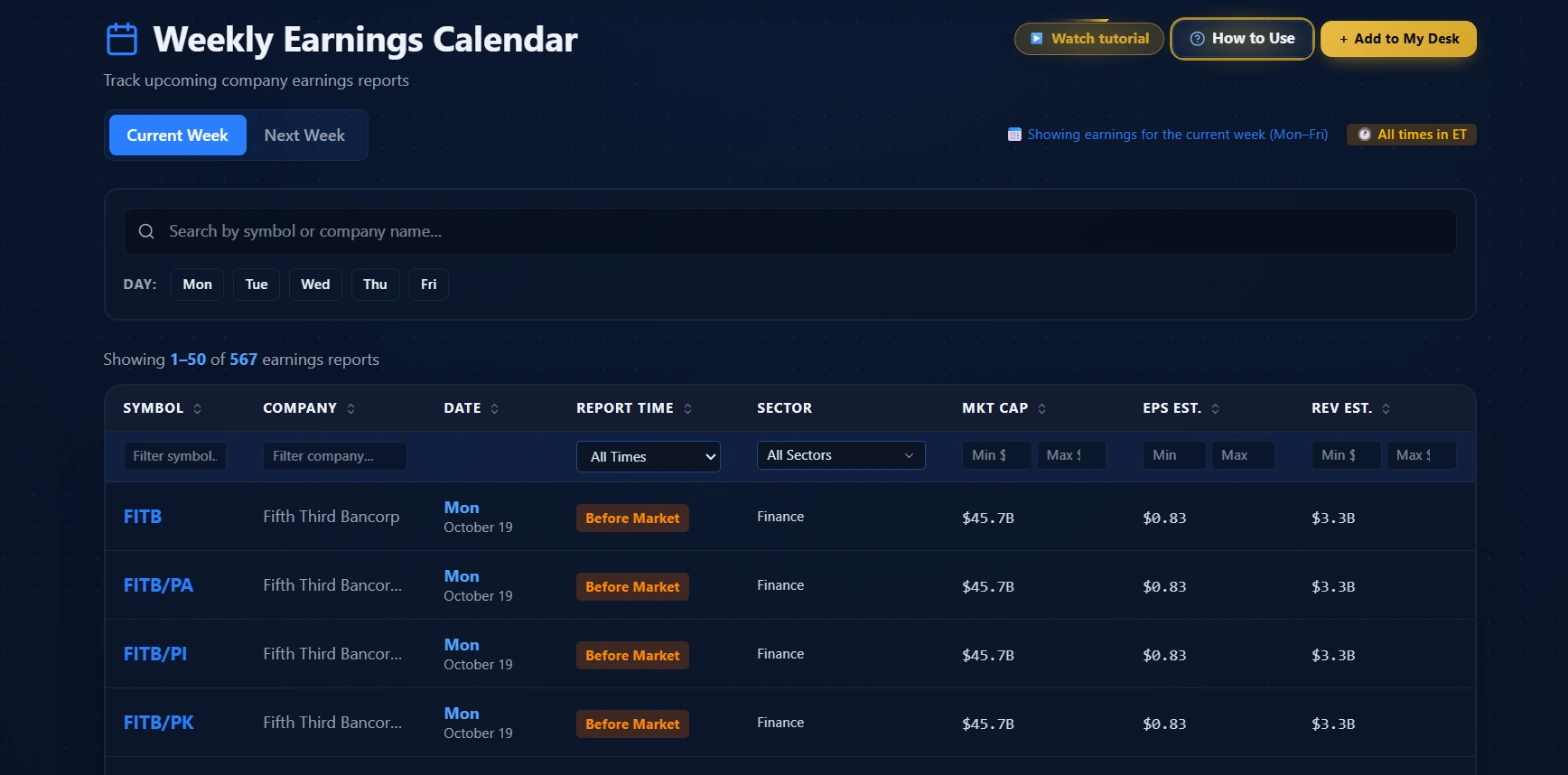 The week toggle and search bar sit above the table. That "Showing 1-50 of 567" count is real: a typical week has several hundred names on the calendar. All times shown on this page are Eastern Time.
The page title is "Weekly Earnings Calendar." The toggle at the top switches between Current Week and Next Week, each covering Monday through Friday. Times throughout the page are Eastern Time.
Below the toggle is the quick-filter bar: a search field that filters by symbol or company name, and a row of day buttons labeled Mon through Fri. These two controls narrow the list before any column-level filters apply.
The table shows 50 rows per page with pagination at the bottom. Column headers are sortable by clicking. Below each sortable header sits a column-level filter input. Free accounts see the first 8 rows. A blurred gate shows there are more names without letting you read them. Premium members see the full week.
Your filters persist across sessions. When you come back the next day within the same week anchor, your selected days, column filters, and sort order are restored. Week-specific filters reset when the new week starts, so you aren't staring at an empty Monday-only view the following Monday.
Each column, in order
Symbol
Clicking any symbol opens Ticker Search for that name. That gives you the options chain, flow history, and fundamentals in one place. It's a useful shortcut when you spot a name on the calendar and want to look at what options are available before or after the print.
The symbol column has a text filter beneath the header. Type a ticker to narrow the table to matching symbols. The company column has its own text filter that works the same way.
Company
Full company name, truncated on wider names. The text filter here is useful when you know the company but not the exact ticker, or when you want to see all related entities under one name. That second use matters more than it sounds, and I'll get to it in the next section.
Date
The scheduled report date, shown as the abbreviated day name with the month and day number below. This column is sortable. The default order runs the week from Monday to Friday chronologically. There's no column-level filter on Date; use the day buttons above the table for day filtering.
Report Time
Three possible values, each with its own badge color:
-
Before Market (amber): the company reports before 9:30 AM ET. Your position faces gap risk at the open. The market opens at whatever price the overnight reaction set and you're dealing with that print at 9:30.
-
After Market (purple): the company reports after 4:00 PM ET. You have the full trading day to manage or close before the news drops. After the report, you have until the next morning's open to decide what to do.
-
During Market (cyan): the report drops during regular trading hours. Less common, and the reaction happens while the market is open. There is no overnight gap, so you are watching an intraday move as it unfolds.
-
TBD: the timing has not been confirmed yet. Treat this the same as unknown. It could be BMO, AMC, or during market. Verify the week of the event.
This column has a dropdown filter with options for All Times, Before Open, After Close, and During Market.
Sector
Sector values come from TradingView's taxonomy. You'll see names like "Finance," "Technology Services," "Non-Energy Minerals," and "Process Industries." This is not the standard GICS classification. The sector column has a multi-select dropdown that lets you pick one or more sectors at once. Sector is not sortable.
Mkt Cap
Market capitalization, formatted as T for trillions, B for billions, and M for millions. Rows without coverage show a dash. The filter on this column takes a Min and Max in billions. A dash in this column means the ticker is not in the platform's coverage universe. It can still have an earnings date; there's just no market cap data attached to it.
EPS Est.
Analyst consensus EPS estimate for the quarter. Negative values show in red, because a company reporting a loss is a different kind of binary than a profitable one. The filter on this column takes Min and Max in dollar terms.
Rev Est.
Analyst consensus revenue estimate, formatted in the same T/B/M notation as market cap. Filter Min and Max in billions.
The preferred share situation
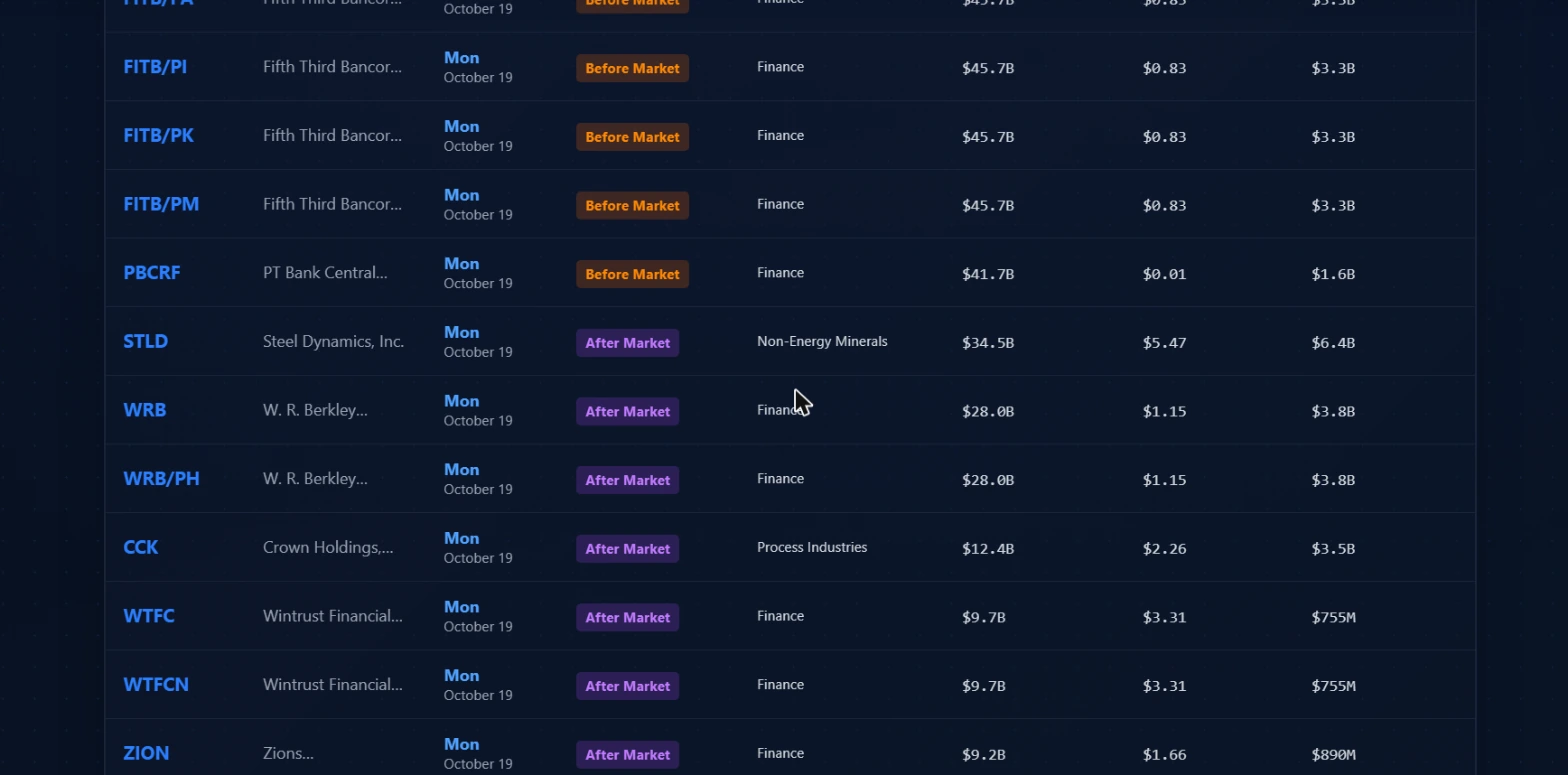 Preferred shares and warrants appear as separate rows with the same parent company name and identical estimates. Slash-suffixed tickers stacked under a symbol all point to the same earnings event as the common stock.
A practical thing the screenshots make clear: preferred shares and depositary receipts show up as their own rows. When you see a ticker followed by versions with /PA, /PI, /PK, and /PM suffixes, those are all preferred series of the same company. They share the same earnings date, the same EPS estimate, and the same revenue estimate, because they all trace back to the same company reporting the same quarter.
This is how the underlying data source works. The calendar pulls from a broad ticker universe and each preferred series gets its own row. A single company can occupy four or five rows as a result.
If that clutter bothers you, use the company name text filter to drill to the entity you care about. The symbol text filter handles the common stock specifically. These preferred series have their own option chains, but from a calendar standpoint they're all pointing at the same event date.
The veto check: expiry before the print versus after it
This is the reason the calendar exists, so let me be direct about the mechanics.
When you sell a covered call expiring this Friday on a name that reports Thursday after market, you're holding that position through an earnings event. The option expires one trading day after the report drops. You cannot close before the binary. Your only exit is to buy it back at whatever post-earnings price the market sets.
When you sell a covered call expiring the following Friday on the same name, you have a full trading day after the Thursday AMC report to decide what to do. You can close at full information if you decide you don't want to hold through it.
The difference is whether your expiry clears the print and which side of the print it lands on. The calendar tells you exactly where the print sits in the week. The rest is your decision.
BMO and AMC have meaningfully different exit windows. A Before Market report happens before the open. Your position gaps at 9:30. You cannot close before the news lands. An After Market report hits after 4:00 PM. You have the entire trading day before the report to close or adjust if you decide not to hold through the event. The mechanics of BMO and AMC are different even when both fall before your expiry date.
Watch out: The most dangerous version of this mistake is one where you forgot to check. A covered-call or CSP seller who didn't notice an earnings date inside their expiry window has written an unintended binary bet with no obvious tell until the price gaps.
Workflows
Checking your existing positions
This is the most basic use: before the week starts, scan the calendar for any name you're currently holding options on. Match the expiry date of your position against the earnings date. If an earnings date falls inside your expiry window, that position is carrying binary risk you may not have intended when you entered.
The search box makes this fast. Type each symbol you're watching. See the date. See whether it's BMO or AMC. Decide before the week starts rather than catching it mid-week when your options to adjust are narrower.
Finding names to track on Earnings Flow
Once you've identified names reporting this week, cross them with Earnings Flow. Earnings Flow surfaces unusual options activity in the window leading up to a company's earnings date. Pre-earnings positioning tends to have a specific character: directional bets on a known catalyst with a known timeline, often with higher than usual premium concentration in one direction.
The calendar gives you the list of who's reporting and when. Earnings Flow tells you whether the options tape is already moving ahead of any of those reports. Identify the names here first, then check Earnings Flow to see whether activity has started building into any of them.
Planning the week by day and sector
The day buttons let you isolate a single day's reports. Clicking Wednesday shows only names reporting that day. Pair this with the sector filter and you can quickly see whether several names in the same sector are all reporting within a narrow window.
When multiple names in the same sector report close together, the reaction to the first one can move the others before they print. A large technology services company reporting strong results Monday after market can set the tone for similar names reporting Wednesday. A miss on a financial sector name can create pressure on peers before they report. The calendar, filtered by sector and day, makes these clusters visible at a glance.
Selling premium around a known print
When you find a name through Unusual Activity or a screener and want to sell premium on it, use the earnings calendar before choosing your expiry.
The workflow: note the next earnings date. Look at the available expirations on that name. Choose an expiry landing before the print if you want to collect premium without holding through the binary. If you choose an expiry landing after the print, you're in an earnings trade, not an income trade. Size accordingly.
Sorting the calendar by market cap and filtering by sector lets you quickly survey a given area for names reporting in the next two weeks. That's a useful pre-scan for names where premium might be elevated from earnings uncertainty.
Common mistakes
Not checking before entry
The most common one. A trader opens a position, picks the strike, picks the expiry, places the order. They didn't check the calendar. The company reports the day before expiry before the open. The position was opened at full binary risk under the assumption it was a regular premium trade.
The fix is procedural: calendar check before every options entry.
Treating BMO and AMC as the same thing
They aren't. Both can land inside your expiry window, but AMC gives you the trading day before the report to close if you change your mind. BMO doesn't. When you're evaluating whether to hold through an event, AMC is generally less constraining than BMO even when both fall before expiry.
Using EPS estimates as direction
The EPS estimate column tells you what analysts expect. It does not tell you which way the stock moves on the report. A beat can sell off because the guidance was cut or the revenue line missed. A miss can rally because the bar was already priced into the options. The estimates frame the consensus going in. The market's reaction to the gap between that consensus and the actual number is what moves the stock.
Ignoring TBD timing rows
A company with a confirmed AMC timing badge is different from one showing TBD. TBD means the exact time hasn't been confirmed. That report could be BMO, AMC, or during market. Treat TBD rows as higher uncertainty and verify the timing directly with the company's investor relations page during the week of the event.
Reading a sector cluster from one direction only
When three Finance names all report on the same day and one of them misses badly, the others tend to reprice before they print. If you're short premium on a Finance name reporting two days after a bad print from a peer, you're sitting in a different risk environment than you were before that peer reported. The calendar shows you the cluster but doesn't model the spillover. That part is judgment.
What this tool doesn't tell you
The calendar shows date, timing, sector, estimates, and market cap. It does not give you expected move or implied volatility data. To see what the options market is pricing as the expected move for a specific name's report, look at the options chain directly. The symbol link on each row takes you to Ticker Search where you can access the chain.
Coverage is one week at a time: current week or next week. If you're managing long-dated positions that span multiple earnings events, you'll need to come back each week as new names come into view.
The data sources powering the calendar are TradingView as the primary, with Yahoo Finance as a fallback. Dates can shift. Companies occasionally move their reporting date by a few days after the initial filing. Verify against the company's investor relations page during the week before the event.
Finally, the calendar shows you the cluster but not the changed risk environment when a peer reports before you. When a large name in a sector misses its numbers and you're holding something in the same sector that reports two days later, the calendar tells you the timing. The context shift from that first print is yours to interpret.
Pairing this with other tools
Earnings Flow shows unusual options activity in the pre-earnings window. The calendar identifies who's reporting. Earnings Flow shows whether the tape is already positioning in advance.
Unusual Activity captures individual prints scored by the platform's anomaly engine. When a name you found on the calendar shows up in Unusual Activity with an aggressive sweep two weeks before the print, that's a pre-positioning pattern worth examining separately.
Ticker Search is the destination when you click a symbol in the calendar. It gives you the options chain, historical flow, and fundamentals alongside the earnings date in one place.
The calendar is also worth checking before working any screener output that returns names near an earnings event. Screeners don't flag earnings proximity by default. That context check is yours.
Options trading involves real risk of loss, including the possibility of losing more than you put in. Nothing here is financial advice. It's a walkthrough of how the tool works and what the data means. Do your own research and manage position sizing carefully, particularly around binary events like earnings reports.